We use cookies to keep this site running smoothly and to understand how visitors use our tools. You can accept or decline analytics cookies. See our Privacy Policy for details.
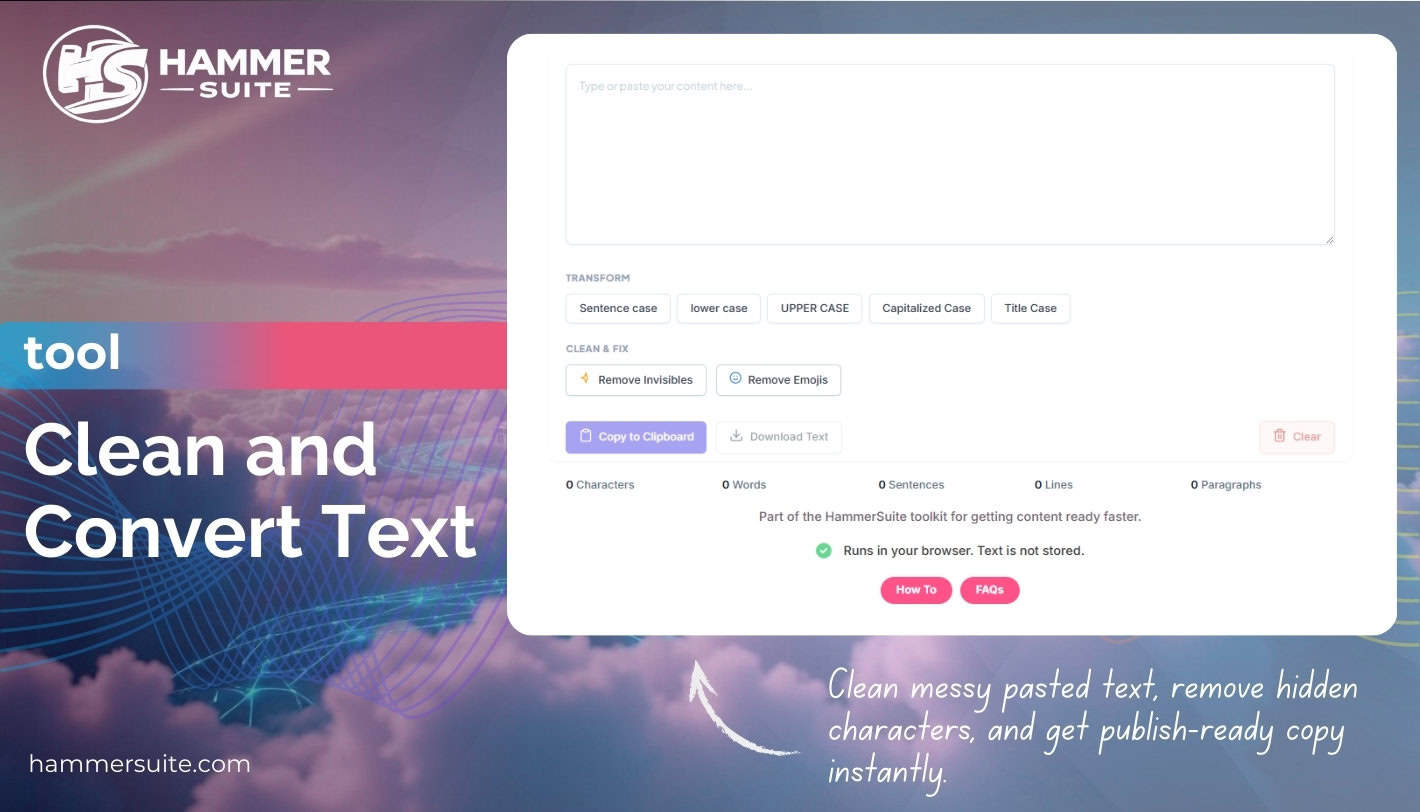
Stop wasting hours manually fixing "wonky" formatting and hidden artifacts. This guide shows you how to use the HammerSuite Clean & Convert Text tool to sanitize copy from AI, PDFs, and Word for a perfect, mobile-ready paste every time.
Stop wasting hours manually fixing wonky formatting and hidden artifacts. This guide shows you how to use the HammerSuite Clean & Convert Texttool to sanitise copy from AI, PDFs, and Word for a perfect, mobile ready paste every time.
Have you ever felt that sinking feeling when you paste a perfect draft into your website, only to see random rectangles or a broken mobile layout? You are not alone. Most digital professionals suffer from what we call Copy Paste Syndrome. This is where hidden technical garbage from Word, PDFs, and AI generators hitches a ride on your clipboard. To fix this, you need a high precision workflow. This post walks you through how to Clean & Convert Text using the HammerSuite utility. It ensures your content is sanitised, standardised, and ready to rank without the manual nightmare of deleting extra spaces.
Digital clutter is the silent killer of professional authority.
How to Clean & Convert Text for Professional Publishing
Imagine walking into a high end office with mud on your shoes. No matter how expensive your suit is, you are leaving a trail of dirt on the carpet. Pasting text from a PDF or AI tool into your website is exactly the same. Your copy might look like a rough diamond of insight, but it is covered in the technical silt of proprietary code and hidden markers. Our tool acts as a high pressure filter. It strips away the debris so only the pure, polished substance remains.
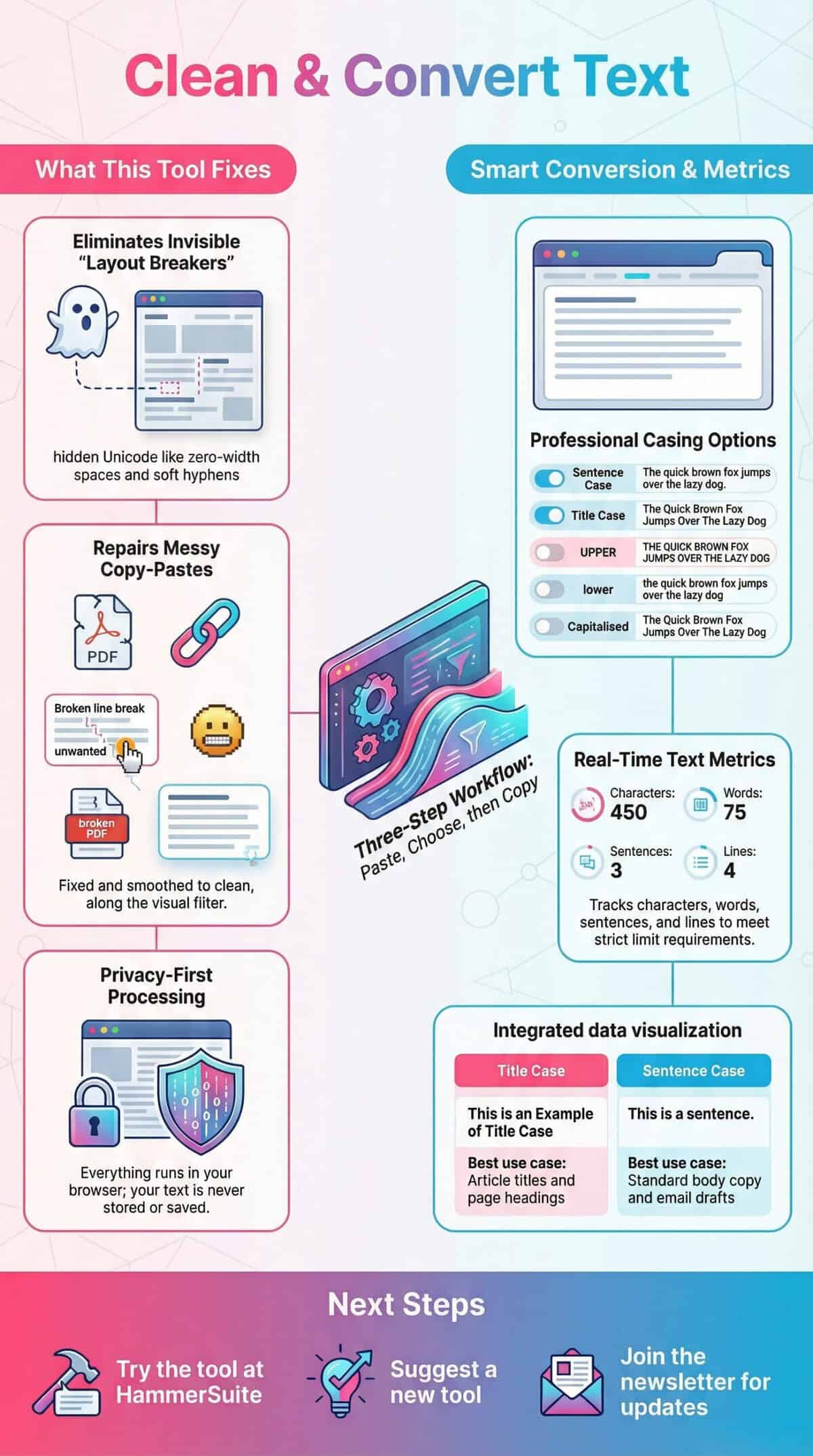
Content managers publishing multiple posts daily often spend twenty minutes per post just deleting double spaces and fixing wonky line breaks. This is a massive time thief. You trust your CMS to handle the paste, but it hoards junk code like Mso styling. This balloons a small post into a technical nightmare that slows down your site. Even worse is the mobile failure. Text that looks fine on your desktop can become a horizontal scrolling disaster on mobile because of a few hidden non breaking spaces. The ultimate villain is the invisible characters. Whether it is the Zero Width Space or the Non Breaking Space, these ghost characters are the silent layout killers hiding in every dirty paste.
The Workflow Hero: Your Action Plan
Zero Learning Curve: Sanitise and reformat messy text in under ten seconds.
Privacy First: All cleaning happens in your browser and no data is stored or uploaded.
The Ghost Fix: Automatically strip formatting and invisible markers that break SEO and layouts.
AI Ready: Remove markdown artifacts and grey boxes from ChatGPT or Claude outputs.
Standardised Branding: One click conversion between Title Case, Sentence Case, and more.
Step 1: The Raw Input (Paste and Assess)
Your journey begins by dropping your text into the input field. Whether it is a PDF extraction with shattered paragraphs or an AI output full of hash symbols, the tool handles the multi source mess. We see this often with the AI Leak. This is where ChatGPT markers like asterisks and grey boxes try to infiltrate your professional drafts. By using a plain text converter, you can see the raw reality of your copy before it reaches your audience.
Step 2: The Sanitisation Phase (Removing the Invisible)
The priority action is to remove hidden characters before you change the casing. This prevents formatting landmines from triggering later in your workflow. You need to strip formatting to protect your search engine performance. If your keyword contains a hidden marker in the middle of the word, Google will not find it. This technical deep dive ensures your web ready content is actually readable by bots and humans alike. Using an ASCII character cleaner at this stage is the difference between a professional post and a broken layout.
Invisible characters are the technical silt that turns a fast website into a sluggish swamp.
Step 3: The Standardised Polish (Casing and Emojis)
Once the technical debris is gone, you can choose your brand voice. You might need sentence case transformation for your body text or title case rules for your headings. Professional proposals often need the Remove Emojis toggle to maintain a corporate tone without manual deletion. This text formatting utility allows you to normalize text across different drafts so your entire website looks consistent. Whether you need to standardize casing or scrub content of unwanted symbols, the process is instant.
Step 4: Final Output and Metrics
Click the button for an instant transformation. The tool provides a metrics summary including character, word, and line counts. This helps you verify your content fits its destination, such as social media limits or meta descriptions. You are now ready for a clean copy for WordPress that will not trigger Gutenberg block errors. The result is a content migration tool that respects your time and your technical standards.
The Text Cleaning Myth Busters
Myth
The Reality
The Risk
It looks fine in the editor
Invisible characters like ZWSP only break once you publish.
SEO failure and ghost rectangles on mobile.
Changing case fixes it
Casing only changes letters and it ignores spaces or artifacts.
Persistent double spacing and wonky kerning.
My CMS will handle it
CMS editors often keep span tags and junk code for fidelity.
Slower site speeds and broken responsive layouts.
Professionalism is measured in the details that your audience never sees but always feels.
Pros and Cons of Online Text Cleaning
Pros
Cons
Instant removal of hidden ghost characters.
Cannot reconstruct complex tables from PDFs.
Standardises branding with one click.
Requires a manual copy paste step.
Privacy first as it runs 100 percent on your device.
Does not check for grammar or spelling errors.
Fixes the AI vibe by removing markdown markers.
Action Checklist: Your Perfect Paste Workflow
Source Copy: Copy text from Word, PDF, or AI generators.
The Filter: Paste into the Clean & Convert Text tool.
Sanitise: Toggle the option to remove invisible characters.
Refine: Remove emojis and trim extra spaces.
Style: Select your preferred casing such as Sentence or Title case.
Verify: Check word count metrics for a perfect fit.
Publish: Copy the clean result into your CMS or email client.
FAQS
Common questions about cleaning and converting text
Does HammerSuite store the text I paste into the tool?
Not at all. We value your privacy and the sensitivity of your professional drafts. The Clean & Convert Text tool is client side. This means the entire process happens inside your own web browser. No data is ever uploaded to our servers and nothing is stored once you close the tab. It is the safest way to sanitize emojis or clean sensitive proposals before they go live.
Why does my text look broken on mobile but fine on my computer?
This is almost always caused by a Non Breaking Space. When you copy from a PDF or Word, these invisible characters prevent the web browser from wrapping text to the next line. Since the browser is forbidden from breaking the line, it creates a massive horizontal scroll. This ruins the mobile experience. Our tool identifies these hidden markers and converts them to standard spaces. This restores your responsive layout and prevents horizontal scrolling issues.
Will this tool remove the AI look from my ChatGPT or Claude content?
Yes. AI generators often output text wrapped in markdown artifacts and sometimes include hidden Unicode fingerprints. If you paste these directly into an email or WordPress, you often get grey shaded boxes or stray asterisks. By running your AI output through the process, you strip away those technical signatures. It removes ChatGPT formatting symbols and leaves only the human readable text for your audience.
What is the difference between Title Case and Capitalised Case?
It is a subtle but important distinction for branding. Capitalised Case simply capitalises the first letter of every single word. However, Title Case follows professional editorial rules. It capitalises principal words but keeps smaller conjunctions and prepositions in lowercase. This ensures your headings look like they were edited by a professional publishing house. It is part of how we standardize headings to ensure high quality results.
Can this tool fix the weird symbols I see in my pasted text?
Often, yes. These symbols occur due to encoding conflicts between legacy document formats and the modern web. By pasting the text into our tool, you are essentially resetting the encoding. When you copy the cleaned version, it is standardised for the modern web. This prevents those garbled characters from appearing on your live website or in the inbox of your customer. It is a simple way to normalize text for global compatibility. Messy copy is more than just an eyesore. It is a productivity killer that threatens your search engine ranking and mobile usability. By integrating a sanitisation stop into your workflow, you move from being a frustrated editor to a high speed content hero. Imagine a world where every paste is perfect and your mobile site never breaks. That is the power of clean text. Open the Clean & Convert Text tool now and start your journey toward a professional digital presence. Explore our full hub of Text Cleaning Tools to find more ways to optimise your workflow.
Share article
Last updated
Read time
4–6 minutes
I’m the creator of HammerSuite™, a growing toolbox of practical web tools, runbooks, and calculators built to reduce friction and help people get real work done faster. After more than 25 years building digital systems for businesses and NFPs, I focus on creating simple, reliable tools that turn messy inputs into clean, usable outputs, without complexity or tool overload.Builder of tools that make work behave.
New Builds and Better Workflows
Quick updates, useful guidance, and occasional hard truths. Privacy respected. Your inbox stays yours.